Connecting via Bluetooth
To successfully establish a Bluetooth connection between a mobile device and a PC, you’ll need to turn on Bluetooth on both devices and check the mobile device name in Android settings. MOBILedit Forensic should be closed for this procedure.
Instructions for Windows 11
On the PC:
Go to “Bluetooth & Devices” > “Devices”
Click “Add device”
Then select “Bluetooth” & “Show all devices”, and find and select the device name
A code will be shown on the PC display:
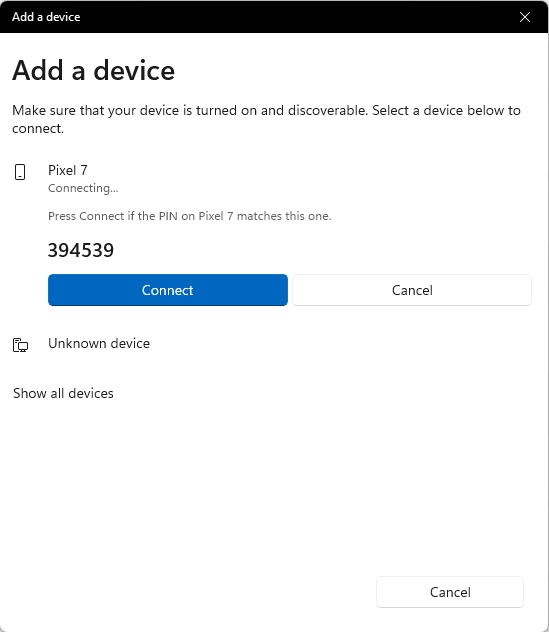
Click “Connect” on the PC and a notification will appear on the mobile device asking you to confirm the PIN and “Pair”
The two devices should now be paired

Bluetooth is susceptible to interference from other computer peripherals, such as Wi-Fi dongles and devices connected via USB. You may need to reposition the phone to reduce interference or move the Bluetooth USB dongle if using one.

If you encounter any issues connecting your mobile device within MOBILedit Forensic, please close MOBILedit Forensic and establish the Bluetooth connection. Once connected, reopen MOBILedit Forensic.
When pairing is done successfully you will see the phone in connected Bluetooth devices in your PC´s BT settings. When this is done you can view the connected phone in MOBILedit Forensic (or any other software of ours). Simply go to the Connection Wizard and select Android - BT connection. Your phone will be found by our Wizard - click on it and a connection should be established.
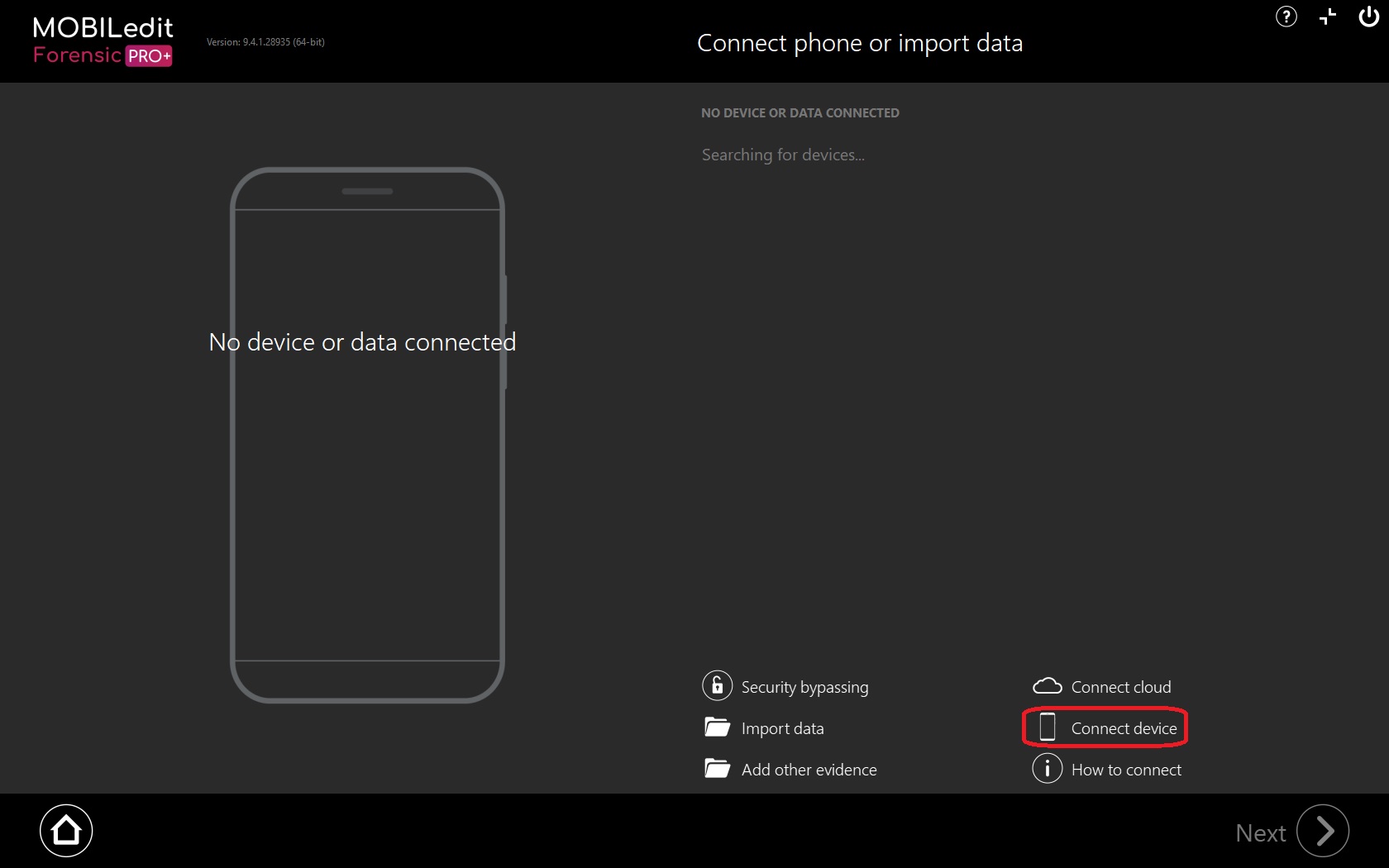
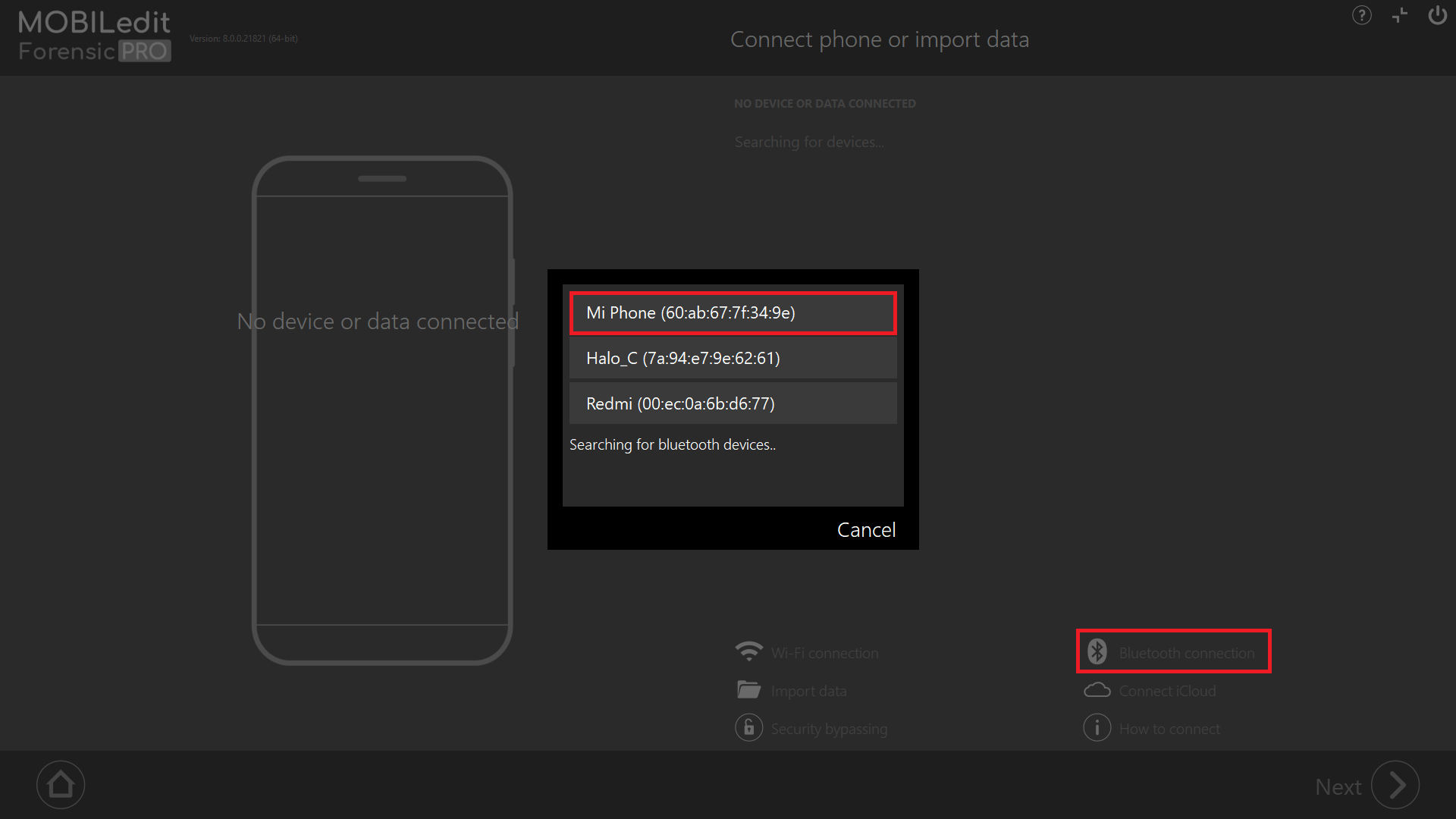
When the connection with the phone is established in MOBILedit Forensic you may proceed to work with the phone as if it was connected via cable. Please note there will be some limitations to this, due to not all the data being accessible via BT. Most phones will allow you to read contacts, messages, and media files.
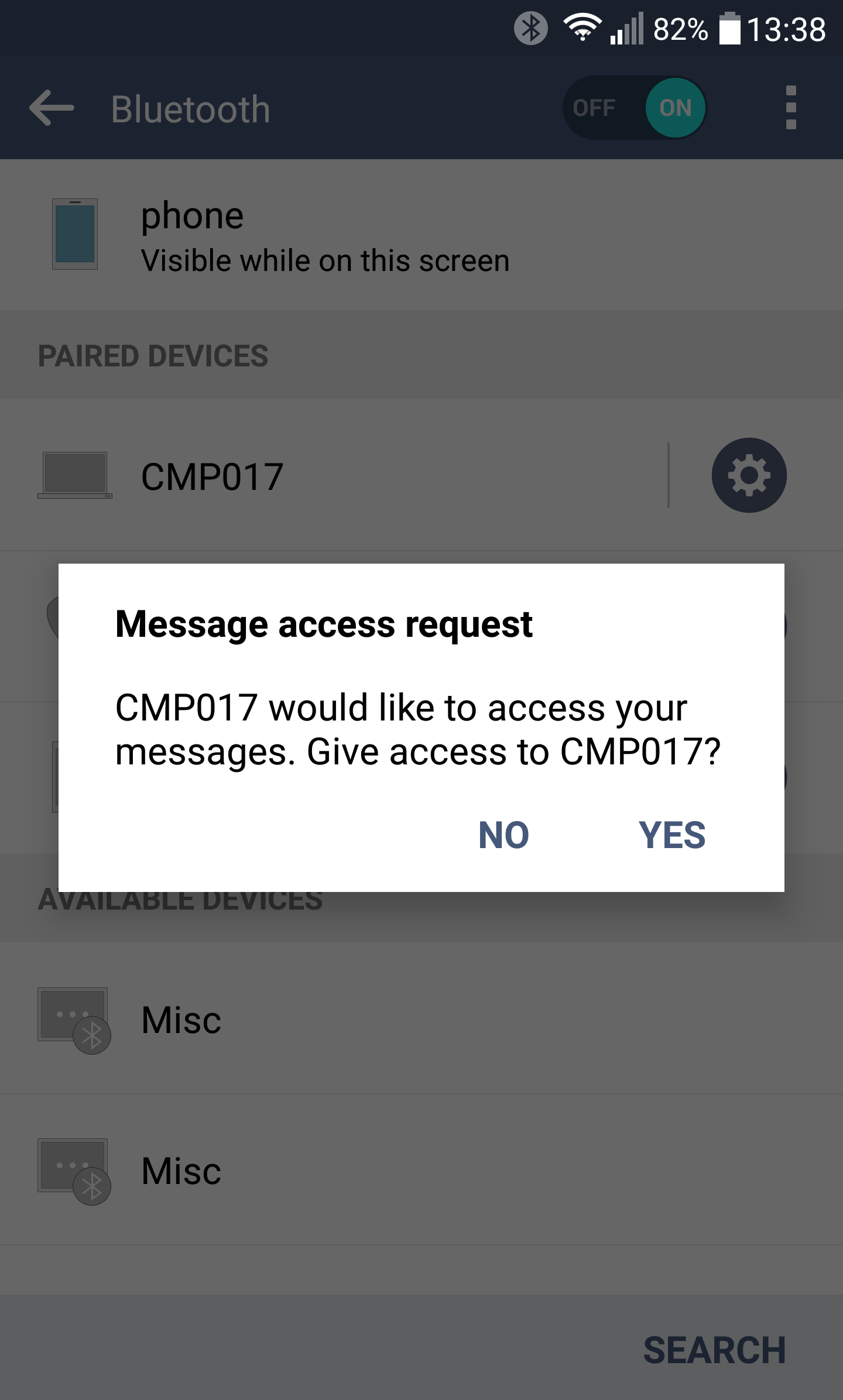
On Android 5.x and newer, you will be asked by the phone´s OS to allow the PC to access the phonebook, messages, etc. A confirmation message will appear on your phone asking you to grant permission for the BT connection to read the phonebook, to read messages, etc. It is necessary to confirm this message by tapping on "allow" / "yes", otherwise empty data will be read.